


Dialpad - First Time Login and Settings


Dialpad First Login Checklist
Welcome to Dialpad! Before you begin making and receiving calls, please complete the steps below.
☐ 1. Open the Dialpad app
Dialpad is configured to automatically download on your computer. If you go to the search bar at the bottom of your screen and type in “Dialpad,” the app should appear. Click into the app.
☐ 2. Sign In to Dialpad
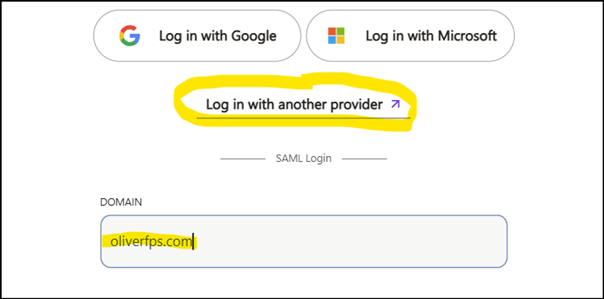
In the Dialpad desktop app and select “Log in with another provider.” When prompted type oliverfps.com in the option for domain. You will be redirected to login with your @oliverfps.com email and password.
Confirm that your name, email address, and job title appear correctly in your profile.
☐ 3. Set Your Outbound Caller ID !!!
All external calls should display the Oliver Fire Protection & Security main phone number, rather than your individual Dialpad number.
- Open Your Settings. (Click your picture > select “Profile,” settings will open in a browser window.)
- Scroll to Caller ID.
- Select the Office Main Line (currently 202-990-1577 but will eventually be 610-277-1331)
- Refresh Dialpad if prompted.
Your Global Caller ID should show the Oliver main number before you begin making external calls.
☐ 4. Record Your Voicemail Greeting
- Open Your Settings. (Click your picture > select “Profile,” settings will open in a browser window.)
- Go to Call Handling & Voicemail.
- Select Record a Greeting.
- Record the following message:
[Hello, you have reached <NAME> at Oliver Fire Protection & Security, extension <EXT>. I am unavailable to take your call, but if you leave your name, number, and a brief message, I will get back to you as soon as I can. Otherwise, press zero to be forwarded back to our main line. Thank you.]
- Listen to your recording to make sure the audio is clear.
- Check the box for “Receive email notifications for new voicemails” if you choose.
Please use the provided script so our voicemail greetings remain consistent across the company.
☐ 5. Set Voicemail Option 0 to Forward to the Main Line
Dialpad allows callers to press 0 during your voicemail greeting to be forwarded to another destination.
Please set this option to forward callers back to the Oliver Fire Protection & Security main line.
- In Your Settings, go to Call Handling & Voicemail.
- Find Forward Voicemail Option 0 to the Following Destination.
- Select Forward to Main Line.
- Save your changes.
Do not select Choose Another Destination unless specifically instructed by IT.
Important: Your voicemail greeting should let callers know they can press 0 to return to the main line.
☐ 6. Check Your Headset & Audio
If you will be using a headset with Dialpad:
 Open the Dialpad app.
- Select the icon
- Confirm the correct device is selected for:
- Microphone
- Speaker/Headset
- Ringing/Notification Audio
- Confirm that you can hear and be heard clearly.
Make sure your headset is connected before placing your first call.
☐ 7. Make a Test Call
Once your setup is complete, place a quick external test call.
Confirm that:
- You can hear the other person clearly.
- They can hear you clearly.
-
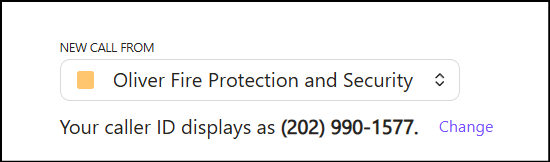
Your outgoing number displays as the Oliver Fire Protection & Security main number.
If any of these items are not working correctly, please contact IT before using Dialpad for regular business calls.
You're Ready!
Before considering your setup complete, confirm:
☐ Signed into Dialpad
☐ Global Caller ID set to Oliver's main number
☐ Voicemail greeting recorded
☐ Voicemail Option 0 forwards to the main line
☐ Headset/microphone/speaker tested
☐ Test call completed successfully
Questions or issues?
Please submit an IT help ticket for assistance by emailing [email protected].

